
XLerobot R550 底盘补充说明
1. 系统架构和组装
1.1 整体架构图
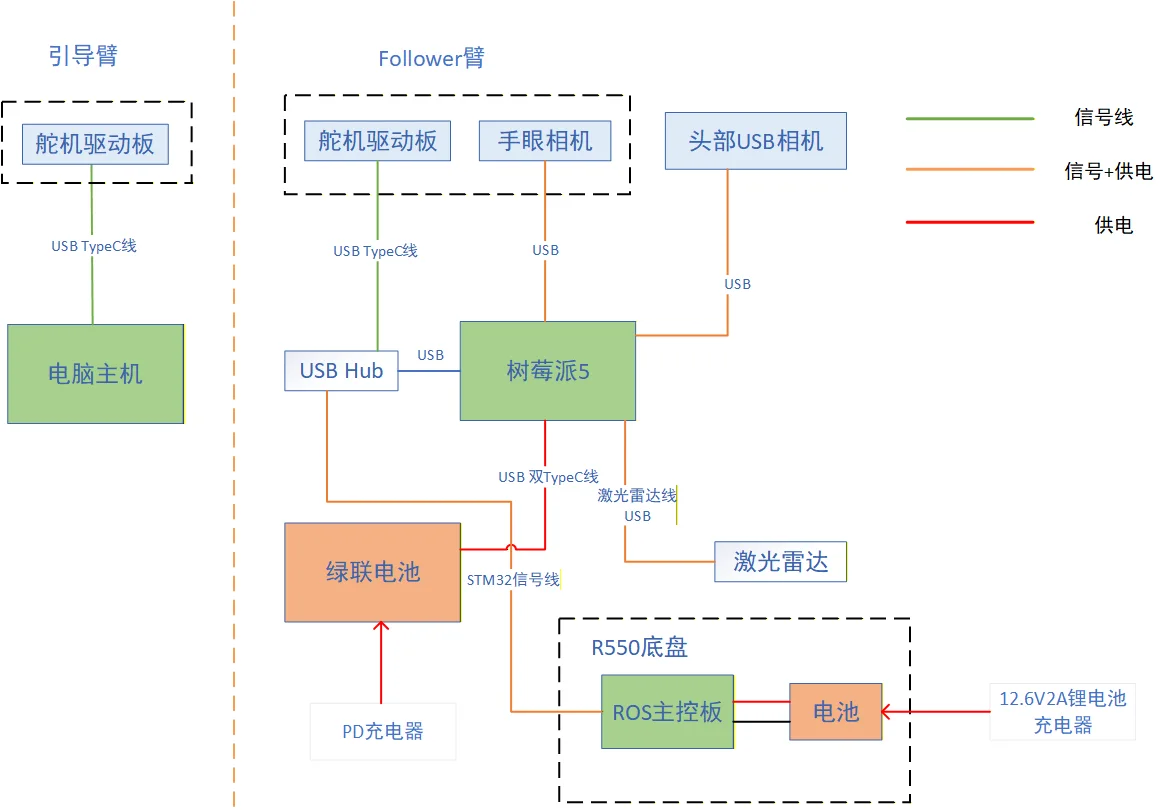
1.2 组装
底盘目前由 R550 底盘上的电池单独供电。充电需使用 12.6V 2A 锂电池充电器(非绿联电池)。
1.3 底盘开关
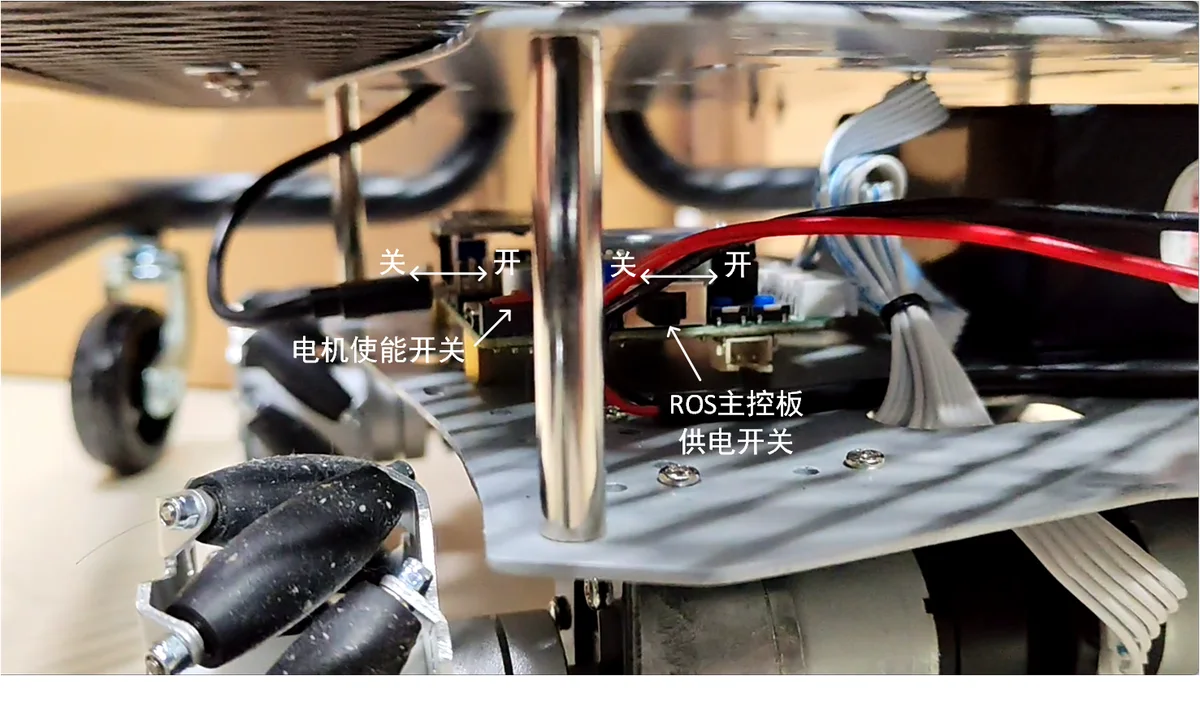
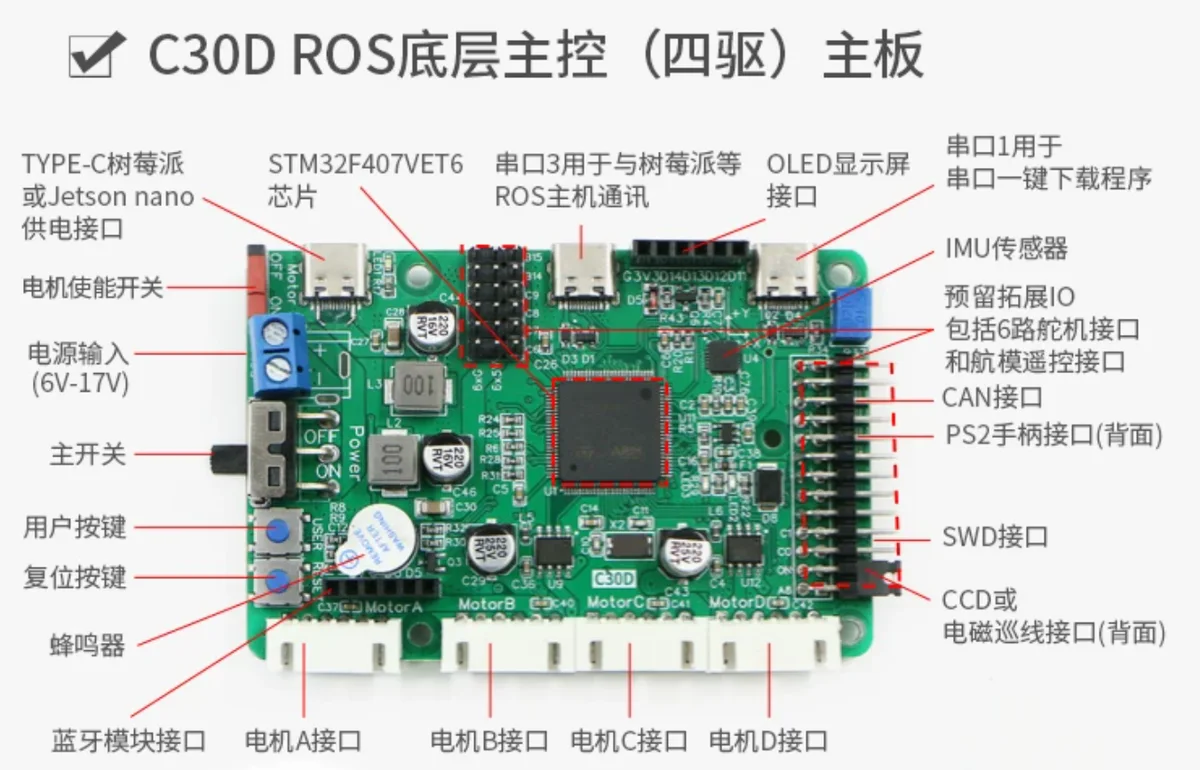
运动控制板 C30D:
2. 软件系统环境
2.1 树莓派系统
| 项目 | 值 |
|---|---|
| 用户名 | wheeltec |
| 密码 | dongguan |
树莓派首次开机需通过 Micro HDMI 连接显示器,USB Hub 接键盘鼠标。
2.2 系统设置
| 项目 | 值 |
|---|---|
| WiFi SSID | WHEELTEC_RASPBERRY5_HUMBLE |
| 激光雷达设备文件 | /dev/wheeltec_lidar |
| 底盘控制板设备文件 | /dev/wheeltec_controller |
| Follower 机械臂端口 | /dev/so101_follower_left |
| 头部相机设备文件 | /dev/camera_top |
| 手眼相机设备文件 | /dev/handeye |
| Follower 机械臂编号 | R12260103 |
| Leader 机械臂编号 | R07260103 |
| XLerobot 编号 | XLR25034 |
2.3 软件环境
ROS
已安装 ROS2 Docker 环境。
树莓派每次重启后,通过以下命令启动 ROS2 Docker 容器(只需运行一次):
shell
ros_start每个终端窗口都需要进入 Docker(每开一个终端都要执行):
shell
ros2ROS 代码目录
ROS 代码在 ~/wheeltec_ros 目录下。
2.4 Lerobot
开发环境
Lerobot 开发环境由 Conda 管理。在终端(非 ros2 Docker 环境)下输入:
shell
conda activate lerobot看到命令提示符前面有 (lerobot) 即表示成功进入开发环境。
代码目录
| 项目 | 路径 |
|---|---|
| Lerobot 框架 | ~/lerobot |
| XLerobot 控制代码 | ~/xlerobot |
2.5 组装后初步验证
ROS 底盘控制
前提:先启动 ROS Docker 并进入 ros2 终端。
启动底盘:
shell
ros2 launch turn_on_wheeltec_robot turn_on_wheeltec_robot.launch.py在另一个 ros2 Docker 终端开启键盘遥控:
shell
ros2 run wheeltec_robot_keyboard wheeltec_keyboard键盘控制(小写模式):
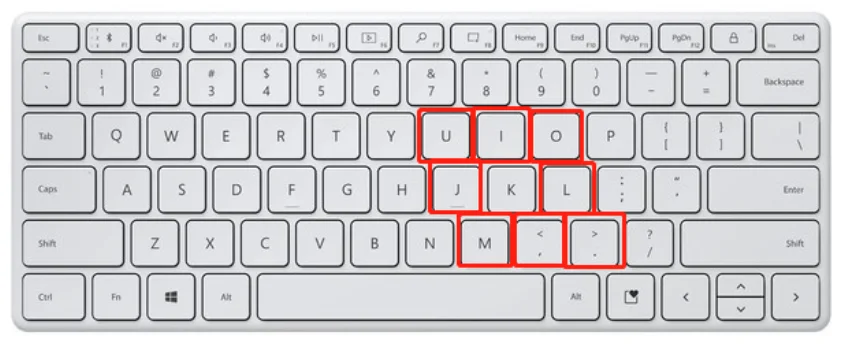
以 k 键为中心:j 向左、l 向右、i 向前、, 向后。斜对角 4 个键叠加转弯和前进。
XLerobot 机器人控制
键盘控制机械臂和底盘:
shell
cd ~/xlerobot/software/examples
python 4_xlerobot_r550_teleop_keyboard.py --robot_id=XLR25032_r550
3. 附录:ROS2 常用命令速查
基础操作
| 功能 | 命令 |
|---|---|
| 打开机器人底盘 | ros2 launch turn_on_wheeltec_robot turn_on_wheeltec_robot.launch.py |
| 打开相机 | ros2 launch turn_on_wheeltec_robot wheeltec_camera.launch.py |
| 打开雷达 | ros2 launch turn_on_wheeltec_robot wheeltec_lidar.launch.py |
| 雷达+相机+底盘 | ros2 launch turn_on_wheeltec_robot wheeltec_sensors.launch.py |
| 键盘控制 | ros2 run wheeltec_robot_keyboard wheeltec_keyboard |
| USB 手柄控制 | ros2 launch wheeltec_joy wheeltec_joy.launch.py |
跟随功能
| 功能 | 命令 |
|---|---|
| 雷达跟随 | ros2 launch simple_follower_ros2 laser_follower.launch.py |
| 视觉巡线 | ros2 launch simple_follower_ros2 line_follower.launch.py |
| 视觉跟踪 | ros2 launch simple_follower_ros2 visual_follower.launch.py |
| KCF 跟随 | ros2 launch wheeltec_robot_kcf wheeltec_robot_kcf.launch.py |
| AR 标签识别 | ros2 launch aruco_ros aruco_recognize.launch.py |
| AR 标签跟随 | ros2 launch simple_follower_ros2 aruco_follower.launch.py |
建图 (SLAM)
| 方法 | 命令 |
|---|---|
| Gmapping 建图 | ros2 launch slam_gmapping slam_gmapping.launch.py |
| Slam Toolbox 建图 | ros2 launch wheeltec_slam_toolbox online_async_launch.py |
| Cartographer 建图 | ros2 launch wheeltec_cartographer cartographer.launch.py |
| RTAB-MAP 视觉+雷达建图 | ros2 launch wheeltec_robot_rtab wheeltec_slam_rtab.launch.py |
| RTAB-MAP 纯视觉建图 | ros2 launch wheeltec_robot_rtab wheeltec_slam_rtab_pure3d.launch.py |
| 保存地图 | ros2 launch wheeltec_nav2 save_map.launch.py |
导航
| 功能 | 命令 |
|---|---|
| 2D 导航(含多点) | ros2 launch wheeltec_nav2 wheeltec_nav2.launch.py |
| RTAB-MAP 视觉+雷达导航 | Step1: ros2 launch wheeltec_robot_rtab rtabmap_localization.launch.py Step2: ros2 launch wheeltec_robot_rtab wheeltec_nav2_rtab.launch.py |
| RTAB-MAP 纯视觉导航 | Step1: ros2 launch wheeltec_robot_rtab rtabmap_localization_pure3d.launch.py Step2: ros2 launch wheeltec_robot_rtab wheeltec_nav2_rtab_pure3d.launch.py |
其他功能
| 功能 | 命令 |
|---|---|
| ORB Slam | ros2 launch orb_slam2_ros orb_slam2_Astra_rgbd_launch.py |
| RRT 自主探索建图 | Step1: ros2 launch wheeltec_slam_toolbox online_async_launch.py Step2: ros2 launch wheeltec_robot_rrt wheeltec_rrt_slam.launch.py |
| TTS 文本转语音 | ros2 launch tts tts_make.launch.py |
| WEB 浏览器看摄像头 | ros2 run web_video_server web_video_server → 浏览器访问 http://192.168.0.100:8080/ |
| ROS2 QT 功能 | ros2 launch qt_ros_test qt_ros_test.launch.py |
编译
| 操作 | 命令 |
|---|---|
| 编译全部(推荐符号链接) | colcon build --symlink-install |
| 单独编译某包 | colcon build --packages-select <包名> |
| 限制并行线程数 | colcon build --parallel-workers 2 |
| 安装全部依赖 | rosdep install --from-paths src --ignore-src -r -y |
其他常用命令
| 操作 | 命令 |
|---|---|
| SSH 登录树莓派 | ssh -Y wheeltec@192.168.0.100 |
| 查看图像话题 | rqt_image_view |
| 查看节点/话题关系 | rqt_graph |
| 生成 TF 树 PDF | ros2 run tf2_tools view_frames |
| NFS 挂载 | sudo mount -t nfs 192.168.0.100:/home/wheeltec/wheeltec_ros2 /mnt |
| NFS 解除挂载 | sudo umount -t nfs 192.168.0.100:/home/wheeltec/wheeltec_ros2 /mnt |
| 手动保存地图 | ros2 run nav2_map_server map_saver_cli -f ~/map |
| 地图路径 | /home/wheeltec/wheeltec_ros2/src/wheeltec_robot_nav2/map/ |
| VNC 调整分辨率 | xrandr --fb 1024x768 |
| 修改系统时间 | sudo date -s "2022-06-15 09:00:00" |
| pip 豆瓣源加速 | pip install -i https://pypi.doubanio.com/simple/ <包名> |
底盘方向与 XLerobot 坐标轴定义:请参考 XLerobot 项目指引文档。